How to Convert SBI Bank Statement to Excel: 2026 Ultimate Guide for Indian Users
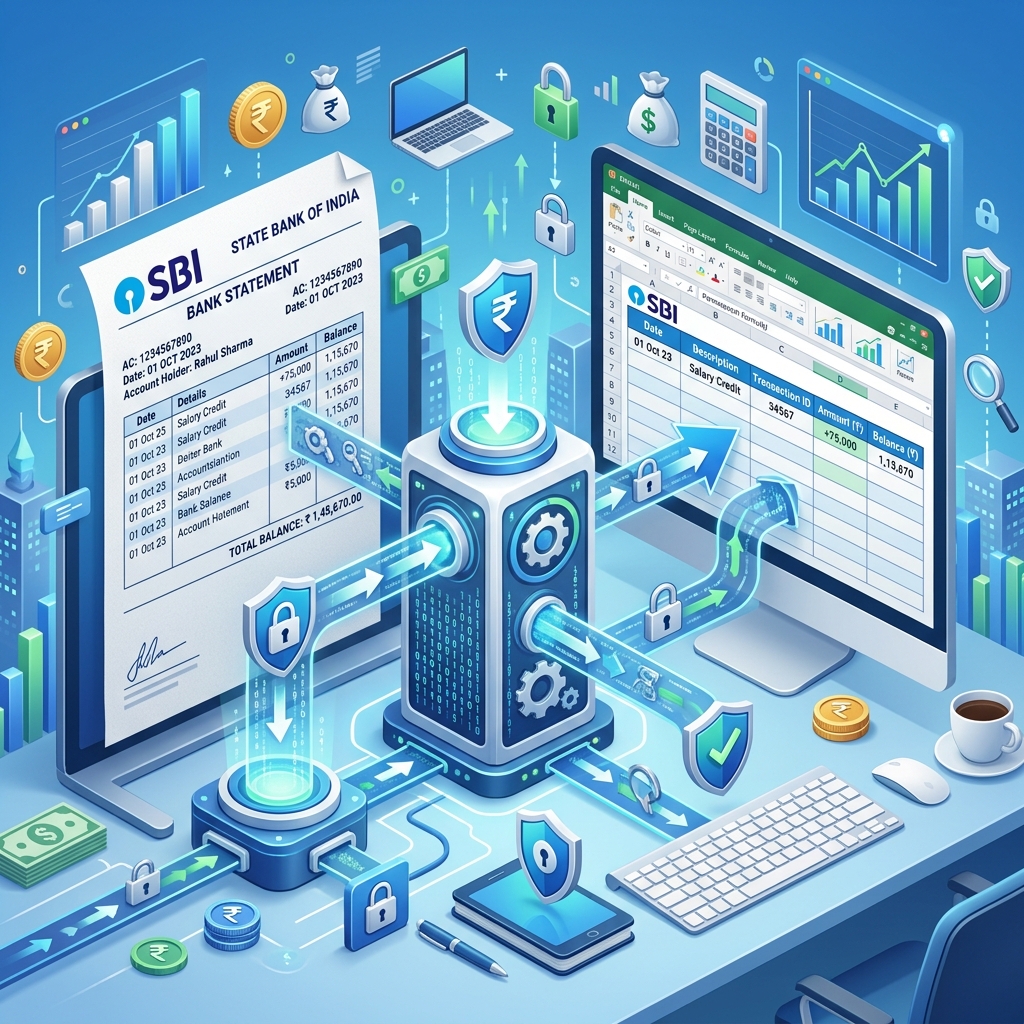
State Bank of India (SBI) is the backbone of Indian banking, serving millions of individuals and businesses. Every month, thousands of SBI customers need to convert their PDF bank statements into Excel format for accounting, tax filing, and expense tracking. If you are a Chartered Accountant (CA) or a business owner, you know that manual data entry from an SBI PDF is not just tedious—it is prone to errors. In this comprehensive guide, we will explore every aspect of SBI statement management and how to streamline your workflow for 2026.
What is an SBI Bank Statement?
An SBI bank statement is a formal record of all transactions in your account over a specific period. It includes details like transaction date, description, cheque number, debit/credit amounts, and the running balance. SBI provides these in various formats, but the PDF is the most common for official use due to its security features. For Indian taxpayers, this document is the primary evidence for income from other sources (interest) and business expenses.
How to Download SBI Bank Statement Online?
Before you can convert your statement, you need to download it correctly. Here are the three most popular ways to get your statement in digital format:
1. Using SBI Online (Net Banking)
This is the most reliable method for downloading long-period statements (e.g., for the entire financial year).
- Log in to onlinesbi.sbi using your username and password.
- Navigate to the 'My Accounts & Profile' tab on the top navigation bar.
- Click on the 'Account Statement' link in the sidebar.
- Select the account for which you need the statement.
- Select the period: 'By Date' (specific range), 'By Month', or '6 Months'. For ITR filing, choose 'By Date' from April 1st to March 31st.
- Select 'Download in PDF Format' and click 'Go'. Your statement will be generated and downloaded instantly.
2. Using YONO SBI App
The YONO app is convenient for quick checks and sharing statements on the go.
- Open the YONO SBI app and log in using your MPIN or credentials.
- Go to 'Accounts' and select your primary account.
- Tap on the 'Statement' icon (the envelope symbol).
- The statement will be sent to your registered email address as a password-protected PDF. Alternatively, you can tap the 'Download' icon to save it locally.
3. SBI Quick (Missed Call/SMS Banking)
If you don't have internet access, SBI Quick can help you get a mini-statement or an email statement.
To get a 6-month statement via email, send an SMS 'ESTMT
How to Open Password-Protected SBI PDF Statements?
Security is paramount for SBI. Most PDF statements downloaded via YONO or received via email are encrypted. The standard password format for SBI statements is:
The last 5 digits of your registered mobile number + Your Date of Birth (DDMMYY format).
Example Case: If your mobile number is 98765-43210 and your DOB is 15th August 1990:
- Last 5 digits of Mobile: 43210
- DOB in DDMMYY: 150890
- Final Password: 43210150890
The Problem: Why PDF is Not Enough for Modern Accounting?
While PDF is great for viewing and security, it is static data. For a modern business or a busy CA, PDF statements present several challenges:
- Inability to Sort: You cannot sort transactions by 'highest expense' or 'vendor name' in a PDF.
- Calculation Errors: You cannot sum up a column of numbers in a PDF without manual entry.
- Tally Integration: Accounting software like Tally or Zoho Books cannot 'read' a PDF directly for auto-posting.
- GST Reconciliation: Matching purchase entries with bank debits is impossible without a structured Excel sheet.
Common Causes for Conversion Errors
Many users try free online PDF converters and face the following issues:
- Broken Tables: The columns shift, and numbers get mixed with narrations.
- Merged Cells: Transaction dates and descriptions get merged into a single cell.
- Missing Decimals: Generic tools often fail to recognize the decimal point in Indian currency formatting (Lakhs/Crores).
- Multi-page Headers: SBI's headers repeat on every page, creating 'junk' rows in your Excel file.
Solution: Converting SBI Statement to Excel with IndiaStatement
IndiaStatement is not just another PDF converter. It is a specialized AI parser designed specifically for Indian bank layouts. Our engine understands SBI's complex narration styles and multi-page structures.
Why IndiaStatement is Different:
- 100% Accuracy: We guarantee that every decimal and date is perfectly mapped.
- Clean Data: No merged cells. Every transaction is a single, clean row.
- Secure Processing: Your data is processed in a secure environment and deleted immediately. We never sell or share financial data.
- Handle Large Files: Whether it's 2 pages or 200 pages, our tool processes it in seconds.
Expert Guide for CAs: Mastering the ITR Season
During the tax season, CAs often receive dozens of SBI PDFs from different clients. Manually entering this data into Excel takes hours. With IndiaStatement, you can:
- Batch process multiple client statements.
- Use our 'Clean Excel' output to quickly filter 'Interest Income' for Section 80TTA/80TTB deductions.
- Identify 'High-Value Transactions' that might trigger SFT (Statement of Financial Transactions) alerts.
- Reconcile TDS deducted on fixed deposits with the 26AS statement.
Conclusion: The Future of Bank Statement Management
As India moves towards a digital-first economy, the tools we use must evolve. IndiaStatement is dedicated to making bank statement conversion effortless, allowing you to focus on what matters most—your business and financial growth. Stop wasting hours on manual data entry and embrace the power of AI-driven conversion.
FAQs (Frequently Asked Questions)
Q: Is IndiaStatement free to use?
A: We offer a free tier for individual users and competitive pricing for professional CAs who need bulk processing.
Q: Does it support SBI Corporate accounts?
A: Yes, we support all SBI account types including Savings, Current, Cash Credit (CC), and Overdraft (OD) accounts.
Q: Can I convert a photo of my SBI passbook?
A: Yes! Our advanced OCR (Optical Character Recognition) can handle clear photos or scans of physical passbooks.
Q: What if my PDF has a password?
A: Our tool will prompt you for the password. We use it only to decrypt the file for processing and never store it.
Ready to convert your statement?
Experience 100% accurate bank statement conversion with IndiaStatement.
Try it Now